ImmiAccount document format rules: the list, the names, the colour
Our other ImmiAccount guides cover attach errors and combining evidence. This one covers the rules underneath both: visa files up to 5 MB in fifteen accepted formats, no compressed or encrypted files, file names built only from letters, numbers, dashes and underscores — and colour scans wherever the original is in colour.
 By the PDFJadoo Team9 min read
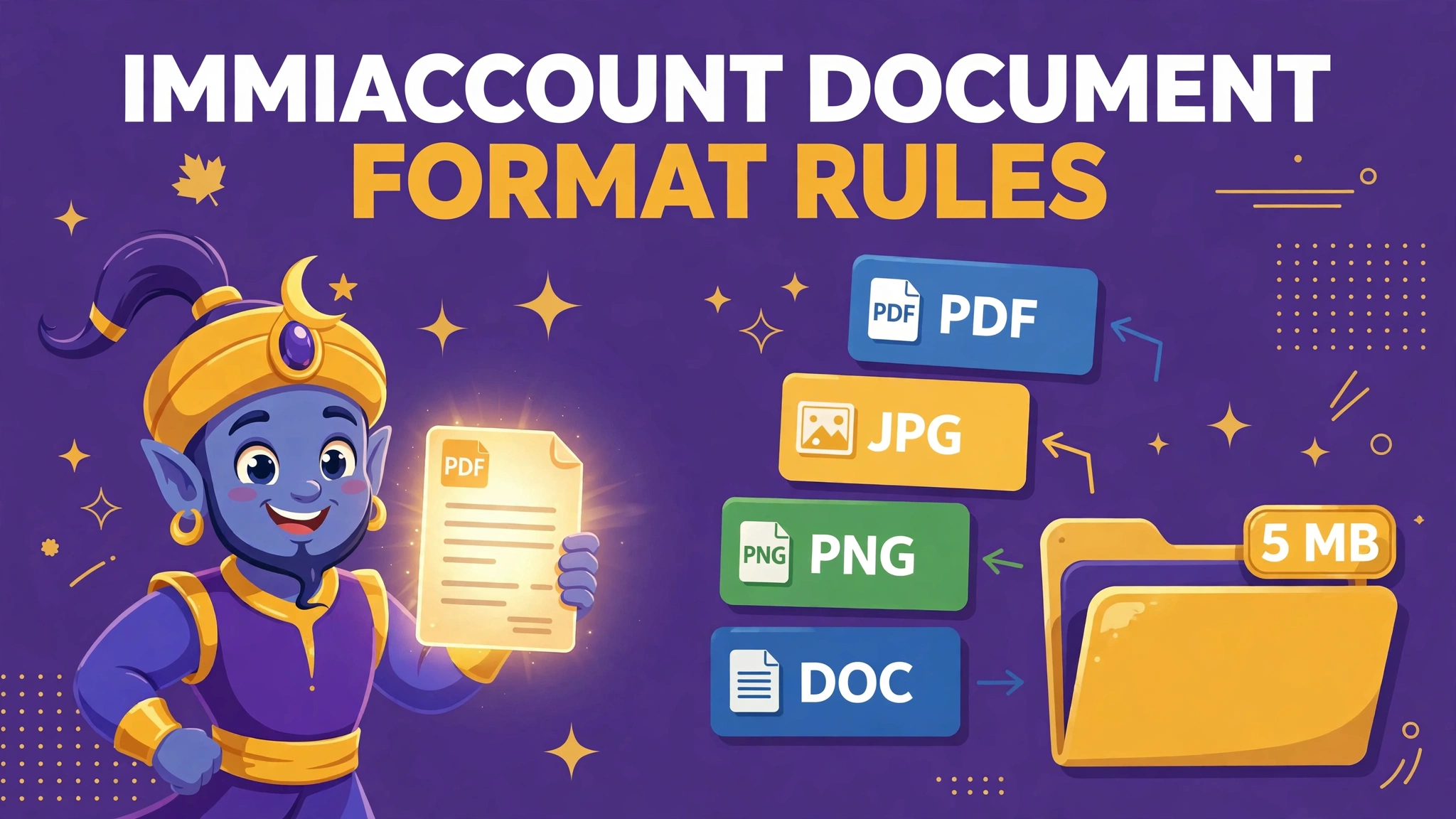
The official rules, exactly as Home Affairs publishes them
The Department of Home Affairs publishes its attach-documents guidance for ImmiAccount, and the format rules differ by application type — a distinction most summaries flatten, and one that matters. For visa applications (including sponsorship and nomination applications) the list is long and the limit is per file. For citizenship applications the Department states a different preference and a much smaller size. Quote the rule for your application, not the one you read first.
| Rule | What Home Affairs specifies |
|---|---|
| Visa file size | You can attach files up to 5 MB in size. |
| Visa accepted formats | bmp, dcm, doc, docx, dot, gif, jpg, pdf, png, ppt, pptx, rtf, txt, xls, xlsx. |
| Never accepted | Compressed files and encrypted PDF files cannot be accepted. |
| Citizenship files | The Department prefers images to be loaded in jpg format. Please limit the size of the file to 500 KB. Scan the original of each document — do not scan a photocopy or a certified copy. |
| Scanning | Scan each document separately and include both sides. If the original document is in colour, scan the document in colour. Where possible, scan the original document. |
| Multi-page documents | For documents containing more than one page, provide the pages in a single PDF document. |
| File names | Use only numbers 0–9, letters A–Z (upper and lower case), dashes and underscores. Avoid spaces, periods, ampersands, hashes, stars, exclamation marks, quotation marks and any other character. |
| Translations | Provide the original document and an English translation for every document not in English, with the translator's full name, address, telephone number, qualifications and experience, all in English. Translators outside Australia do not have to be NAATI accredited. |
| Permanence | Attachments cannot be deleted — they form part of your application. There is also a limit to the number of files that can be attached for each applicant. |
Two honest notes on that table. First, the size figures genuinely differ: 5 MB per file for visa applications against a 500 KB limit with a jpg preference for citizenship applications. That is not a contradiction to resolve by picking one — it is two rules for two application types, published side by side in the same official guidance. Prepare to the rule for the application in front of you. Second, the file-naming rule is stated in Home Affairs' official attaching-documents tip sheet rather than in the current help page, which does not republish it. The safe behaviour is identical either way — plain names cost nothing — but you should know which document the rule comes from, and it is named in the sources note below.
The scanning rules reward a second read. “Scan each document separately” and “provide multi-page documents as a single PDF” are not in tension: each document is its own file, and each file contains all of that document's pages. A passport is one file with its pages together; a bank statement is another. Colour follows the original — a colour original scanned in greyscale has thrown away information the Department asked to keep, including the stamps, seals and coloured security features that make a document look like itself.
Why correctly-sized files still get rejected or cause delays
- A file name containing spaces, brackets, an ampersand, a hash or an apostrophe — the everyday “Passport (colour scan) — final.pdf” style of name is a small museum of banned characters
- An encrypted or password-protected PDF, including bank statements and official forms that arrive protected by default
- A ZIP or other compressed container offered instead of the documents themselves — compressed files cannot be accepted
- An HEIC photo from an iPhone: the format is simply not on the accepted list, however clear the image is
- A colour original scanned in greyscale, discarding stamps and seals
- A multi-page document attached as a trail of separate single-page images instead of one PDF
- A citizenship image prepared to the visa limit — a 4 MB file against a stated 500 KB limit and jpg preference
- A non-English document attached without its English translation, or with a translation missing the translator's details
- A low-quality scan: Home Affairs warns plainly that low-quality scanned documents may delay processing
- The wrong file attached in haste — attachments cannot be deleted, so an error becomes a permanent part of the application record
The file-name failure is the most frustrating because the document is perfect and the name is the defect. Operating systems encourage descriptive names with spaces and punctuation; scanners produce names with dates full of separators; phones produce names nobody chose at all. Home Affairs' naming guidance is restrictive by web standards — letters, numbers, dashes and underscores only, with periods explicitly on the avoid list apart from the one your file extension needs. Treat renaming as a formal step of preparation, not tidiness: Passport_Biodata_Page.pdf will travel; Passport (new) #2.pdf may not.
Permanence raises the stakes on all of it. In many systems a bad upload is a shrug and a re-upload. In ImmiAccount, the guidance states you will not be able to remove a file once attached, and asks you not to contact the Department to request deletion. Combined with the per-applicant limit on the number of files, every attachment is a decision. Prepare the whole set first, check it as a set, and only then start attaching.
The fix, step by step: prepare the set before you attach anything
Step 1 — Scan or photograph each document separately, in colour. One document at a time, both sides where the document has two sides, in colour wherever the original is in colour. For the passport, capture the biodata page cleanly and completely — it is the document every other detail in your application is checked against.
Step 2 — Build each multi-page document as one PDF. Pages in order, one file per document. If your pages start as images, convert them; if a document exists only inside a larger PDF — one statement inside a combined download, for example — extract what you need with PDF to JPG to inspect pages as images, or split and rebuild the document so the file contains exactly that document and nothing else.
Step 3 — Rename every file to the safe alphabet. Letters, numbers, dashes and underscores only. Use names that describe the document: Birth_Certificate.pdf, Passport_Biodata.pdf, Bank_Statement_Jan-Mar.pdf becomes Bank_Statement_Jan_Mar.pdf — note the removed spaces, brackets and symbols. Rename before you attach, because afterwards is too late.
Step 4 — Check size against your application type, and compress if needed. Visa files: up to 5 MB each. Citizenship images: jpg preferred, limited to 500 KB. If a file is over, run it through Compress PDF and re-check readability at full zoom — compression that blurs figures trades a size rejection for a quality delay. Remove any encryption or password protection in this pass as well; an encrypted PDF cannot be accepted at all.
Step 5 — Pair every translation with its original. For each non-English document, prepare two files: the original, scanned in colour, and the English translation carrying the translator's full name, address, telephone number, qualifications and experience, in English. Name them as a pair — Marriage_Certificate_Original.pdf and Marriage_Certificate_Translation.pdf — so the connection survives any ordering in the attachment list.
Step 6 — Do a final set review, then attach. Open every finished file once. Correct document, correct pages, readable, right size, safe name, unencrypted. Only now attach, category by category, Required documents first as the guidance directs. What you attach is what the Department keeps.
Prepare ImmiAccount-ready files — free
Convert pages to images to inspect them, and compress oversized PDFs under your application's limit — 5 MB for visas, 500 KB for citizenship images. Everything runs in your browser.
Compress my PDF Inspect pages with PDF to JPGA worked example: a partner-visa evidence set, cleaned up
An applicant assembles her evidence folder and finds it in the state most folders are in. Her passport scan is named “Passport scan (colour) FINAL!!.pdf” — spaces, brackets and exclamation marks throughout. A joint bank statement is a single 14-page PDF of 8.6 MB, over the 5 MB visa limit, and it is password-protected by her bank. A marriage certificate in another language sits alone, its translation still in her email. One utility bill was photographed on an iPhone and is an HEIC file. Every document is genuine. Almost every file breaks a rule.
The clean-up follows the steps. The passport file becomes Passport_Biodata.pdf, its name now built only from the safe characters. The bank statement's protection is removed, the PDF is compressed to 3.9 MB, and a zoom check confirms every transaction line is still readable; it is renamed Bank_Statement_Joint.pdf. The marriage certificate is scanned in colour as Marriage_Certificate_Original.pdf, and its translation — complete with the translator's name, address, telephone number and qualifications in English — is saved as Marriage_Certificate_Translation.pdf. The HEIC photo is converted into the accepted list and attached as a JPG under the limit.
Nothing about the evidence changed. What changed is that every file now satisfies the format list, the size limit, the naming guidance, the colour rule and the translation rule simultaneously — and because attachments cannot be deleted, that check happened while fixing things was still free. The set attaches cleanly, Required categories first, with the file limit spent only on documents she meant to send.
The 60-second check before you press Attach
For each file, ask six questions. One: is its extension on the accepted list — bmp, dcm, doc, docx, dot, gif, jpg, pdf, png, ppt, pptx, rtf, txt, xls or xlsx for a visa application? Two: is it under my limit — 5 MB for a visa file, 500 KB and preferably jpg for a citizenship image? Three: is the file name built only from letters, numbers, dashes and underscores? Four: is it uncompressed as a container and unencrypted as a PDF? Five: if the original is in colour, is my scan in colour, complete, both sides, all pages in one PDF? Six: if the document is not in English, is its translation — with full translator details — ready to attach beside it?
Then remember the one rule that makes this check different from every other portal's: you cannot take an attachment back. Sixty seconds per file feels slow until you price the alternative — a wrong, oversized or unreadable file permanently on the record, and a processing delay the Department has warned you about in advance. Check first. Attach once.
Fair questions
What file formats does ImmiAccount accept for visa applications?
Files up to 5 MB with one of these extensions: bmp, dcm, doc, docx, dot, gif, jpg, pdf, png, ppt, pptx, rtf, txt, xls or xlsx. Compressed files and encrypted PDF files cannot be accepted.
Is the ImmiAccount file-size limit the same for citizenship applications?
No. For visa applications the limit is 5 MB per file, but for citizenship applications the Department prefers images in jpg format and asks you to limit the size of the file to 500 KB. Check the rule for your application type before you prepare files.
Which characters are safe in an ImmiAccount file name?
Home Affairs' file-naming guidance says to use only numbers 0–9, letters A–Z in upper or lower case, dashes and underscores. Avoid spaces, periods, ampersands, hashes, stars, exclamation marks, quotation marks and any other character.
Do my scans need to be in colour for ImmiAccount?
If the original document is in colour, scan the document in colour. Scan each document separately and include both sides, and where possible scan the original document rather than a copy.
What do I attach for a document that is not in English?
Provide both the original document and an English translation. For every translation, include the translator's full name, address and telephone number, and their qualifications and experience in the language they are translating, with all translator details in English. Translators outside Australia do not have to be NAATI accredited.
How should a multi-page document be attached?
Provide the pages in a single PDF document. Home Affairs also warns that low-quality scanned documents may delay processing, and that an attached file cannot be removed once it has been attached — so check the file before you attach it.
Sources: Department of Home Affairs — Attach documents (visa files up to 5 MB with extensions bmp, dcm, doc, docx, dot, gif, jpg, pdf, png, ppt, pptx, rtf, txt, xls, xlsx; compressed files and encrypted PDF files cannot be accepted; citizenship images preferably jpg, limited to 500 KB, scanned from the original; scan each document separately including both sides; if the original is in colour, scan in colour; multi-page documents as a single PDF; original plus English translation with translator's details; attachments cannot be deleted) and Home Affairs' official tips for attaching documents to an online application (file names: only numbers 0–9, letters A–Z, dashes and underscores; avoid spaces, periods, ampersands, hashes, stars, exclamation marks and quotation marks). Conflict and currency notes: the size rules differ by application type — 5 MB per file for visa applications versus 500 KB with a jpg preference for citizenship applications — and this guide states both rather than merging them. The file-naming rule comes from the Department's official tip sheet (July 2017); the current Attach documents help page does not republish it, so the naming advice is presented as the Department's published guidance, not as a limit the help page restates. This page is general information only and is not legal or immigration advice. PDFJadoo is not affiliated with the Department of Home Affairs.
Keep reading
PDF to JPG
Inspect a PDF page by page as images before you attach it.
Compress PDF
Bring a scan under 5 MB — or a citizenship image under 500 KB.
ImmiAccount won't attach?
The error-by-error companion to this format guide.
Combine ImmiAccount evidence
Fewer, better files against the per-applicant attachment limit.